
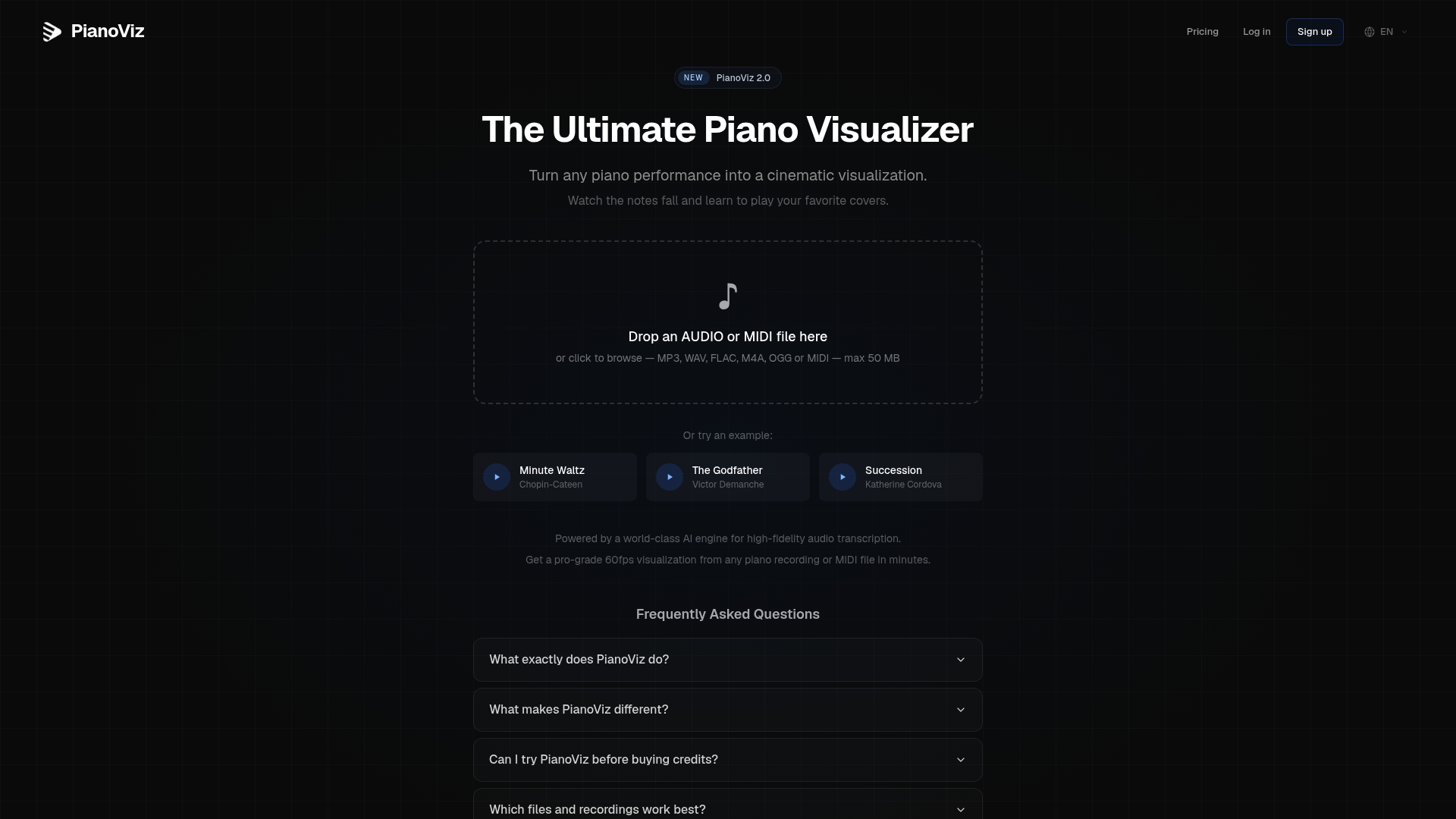
AI piano transcription is most useful when it turns a recording into something you can check, reuse and share. With PianoViz, a solo-piano audio file can become timed MIDI data for a falling-note visualization. If you already recorded MIDI on a digital piano, you can upload that file directly and skip transcription altogether.
This guide explains the practical workflow for teachers, pianists and video creators. It also separates what the AI can do from what still needs a human decision, so you can choose the right source file and export settings without expecting features the product does not offer.
In short: Start with clean solo-piano audio or an existing MIDI file, generate a free 10-second preview, check the result, customize the visualization and then export the format you need.
Audio or MIDI: choose the right starting point
PianoViz accepts two different kinds of input, and they follow different paths:
-
Solo-piano audio: the AI analyzes the recording and generates MIDI note data. After a full transcription, the resulting MIDI can be downloaded and used in another compatible application.
-
MIDI: the file already contains pitches, timing and velocity information, so PianoViz reads it directly. No audio-to-MIDI transcription is required.
If your digital piano can record MIDI, use that file whenever possible. It represents the notes that were played directly. Audio transcription is valuable when a WAV, MP3 or other recording is the only source you have.
A practical PianoViz workflow
1. Prepare a clean source
For audio transcription, use a recording in which the piano is clear and isolated. Heavy room sound, background noise or other instruments can make note boundaries harder to identify. PianoViz is designed for solo piano; it does not separate a piano from a complete band mix.
2. Generate the free preview
Upload the file and create the free 10-second preview. This is the quickest way to judge your own recording. Instead of relying on a universal accuracy percentage, listen to the preview and compare the visible notes with the performance.
3. Inspect the result
Check entrances, sustained passages and dense chords. With an audio source, the generated MIDI should be treated as a useful starting point rather than a guaranteed note-for-note score. PianoViz does not currently provide manual note editing, confidence controls or quantization inside the browser. If detailed MIDI correction is required, download the MIDI after the full transcription and continue in a dedicated MIDI editor or DAW.
4. Customize the visualization
Once the source looks suitable, adjust the falling speed, note colors, glow colors and particles. You can also control the keyboard guide line, note labels and key labels. These choices affect readability as much as style: high contrast is useful for teaching, while a restrained color palette often works better for a finished performance video.
5. Export for the destination
PianoViz exports Full HD MP4 video in landscape 16:9 or vertical 9:16 format, at 30 or 60 frames per second. Landscape is the natural choice for standard YouTube videos and presentations. Vertical is designed for Shorts, TikTok and Reels. Choose 60 fps when smooth falling-note motion matters most; choose 30 fps when a smaller, simpler export is sufficient.
For piano teachers
A falling-note visualization can make timing and note order easier to discuss during a lesson. A teacher can use a short preview to check whether a recording is suitable, then create a clear visual reference for a passage or performance.
Keep the visual purpose specific. Note labels and key labels can help beginners, while advanced students may benefit from fewer overlays and a clearer view of phrasing. PianoViz creates the visualization, but it does not score a performance, identify mistakes automatically or add lesson annotations. The teacher still provides the musical interpretation and feedback.
For video creators
Creators often need two things from the same performance: reusable MIDI data and a polished visual. PianoViz combines audio transcription or direct MIDI import with the falling-note rendering step, which avoids rebuilding the timing in a separate animation tool.
Decide on the destination before styling the video. A 16:9 export leaves room for a wide keyboard and works well in a conventional YouTube frame. A 9:16 export prioritizes the center of the performance for mobile viewing. Use readable colors, test the guide line and labels, and check the 10-second preview at the same aspect ratio you intend to export.
What AI piano transcription can and cannot promise
There is no honest accuracy number that applies to every recording. Results depend on the source, including clarity, sustain, room sound and the density of the playing. That is why the preview is more useful than a generic benchmark: it tests the actual file you want to use.
PianoViz currently focuses on solo-piano transcription and visualization. It does not export printed sheet music or MusicXML, edit individual MIDI notes in the browser, separate stems, add captions, create reduced-speed versions, loop sections or change virtual camera angles. Those tasks require another application or a separate editing step.
Quick checklist before exporting
-
Use direct MIDI when it is available.
-
For audio, start with the clearest solo-piano recording you have.
-
Listen to the free preview and compare it with the source.
-
Choose 16:9 for landscape or 9:16 for vertical platforms.
-
Select 30 or 60 fps according to the desired motion and output.
-
Keep labels and visual effects readable rather than simply adding everything.
Try the workflow on your own performance
The best way to evaluate AI piano transcription is with the recording you actually want to use. Open PianoViz, upload solo-piano audio or MIDI and generate a free 10-second preview before deciding whether to create the full result.
FAQ
Does PianoViz transcribe both audio and MIDI?
Audio uploads are transcribed by a piano-focused AI engine. MIDI uploads already contain note data, so PianoViz reads them directly without transcription.
Can PianoViz export MIDI?
Yes. After a full audio transcription, the generated MIDI can be downloaded for use in another compatible application.
Can I edit individual notes inside PianoViz?
Not currently. PianoViz focuses on transcription and visualization. Detailed note correction should be completed in a dedicated MIDI editor or DAW after downloading the MIDI.
Does PianoViz create sheet music?
No. The current outputs are downloadable MIDI after a full audio transcription and Full HD MP4 falling-note video, rather than printed notation or MusicXML.
Which video formats are available?
Full HD MP4 can be exported in landscape 16:9 or vertical 9:16 format at 30 or 60 fps.